

Obsidian Project Management: A Practical Workflow for Notes, Tasks, and Reviews
Set up Obsidian project management with project notes, Tasks, Bases, and reviews. Choose the smallest workflow before adding plugins or a team tool.
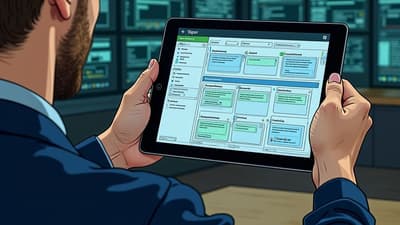
Obsidian Project Management: A Practical Setup for Notes, Tasks, and Reviews
Obsidian can work well for project management when the project depends on context: briefs, research, meeting notes, decisions, and tasks that should stay connected. It is less suitable when a team needs built-in assignment, approval flows, or deadline notifications without configuration.
The useful question is not “Can Obsidian replace every project-management app?” It is “Which parts of this project benefit from living beside my notes, and which parts need a dedicated execution tool?” This guide gives you a small system you can adapt without turning your vault into a maintenance project.
The short answer: choose the smallest system that works
Start with one project note, one consistent task convention, and one review habit. Add a view or plugin only when a real question remains unanswered.
If that question requires cross-vault tasks, calculated views, or automated templates, use the Obsidian plugins comparison to choose one tool for the gap instead of adopting a full stack at once.
| Your main need | Start with | Add only if needed |
|---|---|---|
| Keep a brief, decisions, and links together | One project note and internal links | A project folder for supporting notes |
| See open tasks across a project | Obsidian checkboxes | Tasks for due dates, recurrence, filters, and sorting |
| Sort project notes by status or due date | Properties and the core Bases plugin | Dataview for more complex computed views |
| Capture work from meetings and daily notes | A link back to the project on every action item | A meeting template and a periodic review |
| Assign work, coordinate approvals, or notify a team | Keep the project context in Obsidian | A dedicated project tool for execution |
Obsidian’s core advantage is local, linked context. Its cost is that you must choose conventions and maintain them. The Obsidian Forum discussion on project workflows captures both sides: people build useful dashboards from plain files, while others find that changing project structures or maintaining queries takes too much effort.
A project note that stays useful
Create one note per meaningful project. Keep the note focused on outcome, current status, next action, and links to supporting material. Do not copy every task, meeting transcript, or reference into the project note; link to the source instead.
Here is a starter template. The property names are intentionally small because they need to be filled consistently for views to remain useful.
---
type: project
status: active
area: Work
due: 2026-08-14
---

# Project Atlas

## Outcome

What will be true when this project is complete?

## Next action

- [ ] Write the next physical action

## Milestones

- [ ] Confirm scope
- [ ] Deliver first usable version
- [ ] Review outcome and close project

## Decisions

- 2026-07-22 — Record decisions here and link to the meeting or source note.

## Related notes

- [[Project Atlas kickoff]]
- [[2026-07-22 Project Atlas daily note]]
Use a real date for due, one predictable set of status values, and a single spelling for area. Obsidian’s Properties documentation supports text, lists, numbers, checkboxes, dates, and date-times; those types are enough for a first project view.
Folder structure or links?
Both can work. A folder makes a project’s supporting notes easy to scope. Links preserve relationships when a note belongs to more than one context.
Use a folder when:
- the project has many working notes, files, or meeting notes;
- you want a simple path-based task query;
- you want to archive the project as one unit.
Use links when:
- a note belongs to multiple projects or areas;
- the same meeting contains decisions for several projects;
- you want backlinks to show how a decision became an action.
For most personal systems, a project folder plus links from meetings and daily notes is a practical compromise. Keep the structure boring enough that you will still use it on a busy day.
Add tasks where the work is discussed
Do not force every task into a central task note. A task created in a meeting should stay near the decision that created it; a task captured in a daily note should keep that day’s context. Aggregate the tasks with a query instead of duplicating them.
The Tasks plugin documentation confirms support for due dates, recurring tasks, done dates, filtering, and toggling a task from a query. A small project query can look like this:
not done
path includes Projects/Atlas
sort by due
limit 50
If your vault does not use project folders, use a project tag consistently instead and adjust the filter. Keep the query readable. A dashboard that nobody can explain is not a reliable source of truth.
The task fields worth standardizing
Choose the smallest set that answers your weekly questions:
- Status: use the task checkbox for open or done; use a separate status only when you need more states.
- Due date: reserve it for a real deadline, not a preferred workday.
- Scheduled date: use it for when you intend to work, if your task workflow supports it.
- Project scope: use a folder, tag, or link consistently; do not mix conventions without a reason.
- Next action: write a verb and a visible outcome, such as “Draft onboarding outline,” not “Onboarding.”
The Tasks project includes a practical limit warning: querying very large result sets can slow editing. Start with a scoped view and a sensible limit, then widen it only when you know why.
Choose a task model before you build views
Tasks and Bases solve different problems. Tasks queries inline checkbox items across your vault. Bases views notes and their properties. An Obsidian Forum feature request documents the current boundary: Bases does not expose the full text and metadata of inline tasks as Base rows.
| If a task... | Start with... | Trade-off |
|---|---|---|
| belongs beside a meeting or daily note and needs fast capture | A checkbox plus Tasks | Fast and portable, but project-level views depend on folders, tags, or links. |
| describes a project or workstream with status, area, and due date | A project note plus Properties and Bases | Easy to sort and edit, but it does not replace an inline task query. |
| needs its own context, attachments, relationships, or structured history | A one-note-per-task tool such as TaskNotes | Fits Bases well, but adds many files and a community-plugin dependency. |
| needs assignments, approvals, notifications, or shared permissions | A dedicated project-management tool | Better coordination, with project context kept in linked Obsidian notes. |
This decision prevents a common failure mode: building a large Base to compensate for a task model that cannot answer the question. Keep quick actions inline, keep project metadata on project notes, and promote only work that needs a full note.
Use Bases for project overviews, not as a second task system
Bases is an Obsidian core plugin for database-like views of notes and their properties. It can display, edit, sort, and filter files in table or card-style views while keeping the data in local Markdown files.
Obsidian 1.13.4, released July 30, 2026, fixed several Bases issues, including re-enable errors, automatic number-column sizing, and formula editing in pop-out windows. These fixes improve the current workflow, but they do not make inline checkbox tasks first-class Base rows. Check the official changelog when a Base behaves differently after an app update.
That makes Bases a good fit for a project index:
- Add a
type: projectproperty to project notes. - Add
status,area, anddueonly if you will keep them current. - Create a Base filtered to project notes.
- Show the columns that help you decide what to work on next.
- Add a second view only when the first view has a clear limitation.
Use a table for status and due dates, cards when a visual reference helps, and a simple note when a list is enough. Do not build a large dashboard before you have five or six project notes that need comparing.
Dataview can still be useful for calculated tables and task aggregation. It is not automatically better: it introduces query code and another convention to maintain. If your question is “Which active projects are due this month?”, Bases may be the lower-maintenance answer. If your question is “Which tasks were completed last week, grouped by project?”, Dataview or Tasks may be more appropriate.
Connect meetings and daily notes to the project
Projects lose momentum when decisions and actions disappear into separate notes. Use one link in each direction:
- the meeting note links to the project it serves;
- the action item stays in the meeting note and points back to the project folder or tag;
- the daily note links to the project when work happens;
- the project note links to the important meeting and decision notes.
This creates a traceable chain without a manual status report:
Meeting note → decision → task → daily note → project review
For recurring meetings, start with the Obsibrain meeting template guide. For a daily capture-and-review loop, see Obsidian daily notes. Keep project management and note-taking connected, but do not turn every note into a project record.
A weekly review that prevents stale projects
A project system is only as current as its review. Once a week, review each active project and answer:
- What outcome is this project still meant to produce?
- What is the next physical action?
- Is the due date a real commitment or an old guess?
- Which decision, meeting, or reference is missing from the project note?
- Should the project stay active, move to waiting, or be closed?
If a project has no next action, it is not ready for execution. Either define the next step, mark it as waiting, or move it out of the active view. This keeps a project dashboard from becoming a graveyard of good intentions.
The same principle applies to the tools around it. Remove a query, plugin, or property when it no longer answers a real question. The Obsidian Forum’s team-task discussion shows why this matters: people quickly run into questions about subtasks, assignments, meeting actions, energy, and query complexity. A review is where you decide which of those questions your system actually needs to answer.
Where Obsidian stops being the right tool
Obsidian is a strong project context layer. It is not automatically a complete team project-management system.
Consider a dedicated execution tool when you need:
- dependable notifications without extra setup;
- multiple people assigning, commenting, and approving work;
- permissions and audit history for shared projects;
- workload, capacity, or portfolio reporting;
- a visual timeline that non-Obsidian users must edit.
You can still keep the project brief, decisions, research, and meeting history in Obsidian. The honest boundary is useful: let Obsidian own context, and let a specialized tool own the coordination features your team relies on.
A simple decision tree
Do you need project context beside your notes?
├─ No → use the project tool that already fits your team.
└─ Yes
   ├─ Need only a brief and a few tasks? → project note + checkboxes.
   ├─ Need due dates and recurring work? → add Tasks.
   ├─ Need sortable project metadata? → add Properties + Bases.
   ├─ Need calculated dashboards? → consider Dataview.
   └─ Need assignments, approvals, or notifications? → pair Obsidian with a dedicated tool.
Should you build this yourself or start with a ready-made system?
Build it yourself if you enjoy designing your conventions, have a small number of projects, and want complete control over the vault. Start from a prepared system if the friction is not the project work itself but wiring together tasks, project notes, daily planning, quick capture, and reviews.
Obsibrain’s Smart Projects and task-management features provide that ready-made layer inside Obsidian. Its value is reducing setup and maintenance—not promising that every project or team should use the same workflow. If your missing piece is getting ideas into the right project quickly, Quick Capture is the more relevant place to start. If your problem is stale commitments, look at Periodic Reviews.
Final checklist
Before calling your Obsidian project system ready, confirm:
- Every active project has one clear outcome.
- Every active project has one visible next action.
- You use one project-scope convention: folder, tag, or link.
- Due dates mean deadlines, not vague hopes.
- Meeting and daily-note actions remain connected to their source context.
- Your task and project views are scoped and explainable.
- You have a weekly review that closes or updates stale projects.
- You know which team needs still belong in another tool.
Project management in Obsidian works when the vault reduces context switching without creating a second job: maintaining the system. Start with one project, one template, and one review. Add complexity only when the work proves you need it.
Obsibrain
Get the complete Obsidian second-brain system
Skip the 20-hour setup spiral. Templates, dashboards, and workflows ready in about 30 minutes — no coding required.
$49 one-time payment. Backed by our 30-day guarantee.