

Best Obsidian Plugins for 2026: Picks by Workflow
Compare the best Obsidian plugins for 2026 by workflow: tasks, daily notes, research, capture, and visual thinking—with a practical safety and maintenance checklist.
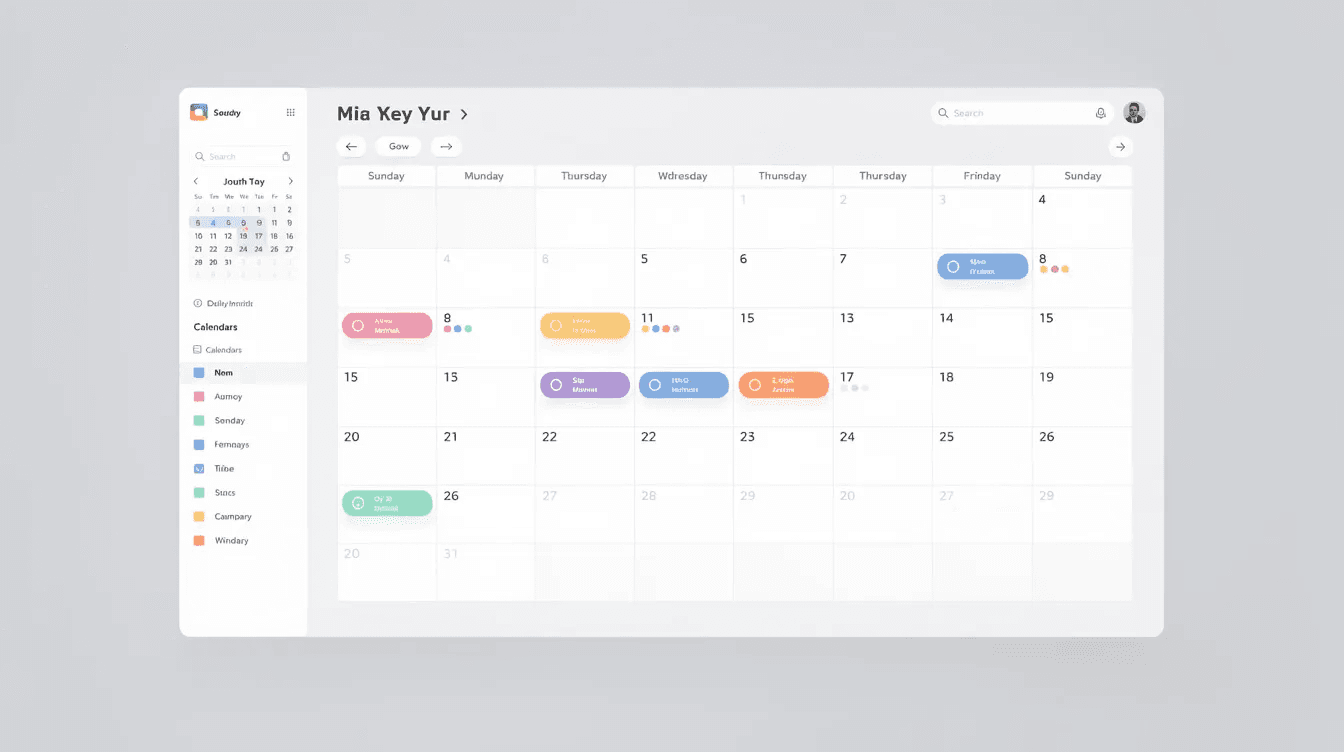
Obsidian’s official Community directory contains thousands of plugins and themes. That abundance creates a real problem: how do you find tools that solve your bottleneck without spending weeks testing every new release? The answer is to choose by workflow first, then verify a plugin’s maintenance and safety signals. Obsidian’s plugin announcement explains the directory, release-date filters, and safety scorecards.
This guide is organized into clear categories—essentials, productivity and automation, research and writing, visualization, customization, and quality of life—so you can jump directly to the friction you want to remove. These are editorial recommendations, not guarantees that every plugin will suit every vault or remain compatible forever.
These recommendations focus on plugins proven across different use cases: personal knowledge management, academic research, software development, and project management. Whether you’re building your first obsidian vault or refining a system you’ve used for years, this guide will help you build a plugin stack that fits.
What you’ll learn:
-
The 8–10 must have plugins that work for nearly any vault
-
How to set up productivity powerhouses like Dataview, Tasks, and Templater
-
Research and writing plugins that streamline academic workflows
-
Visualization tools for brainstorming and systems thinking
-
UI tweaks that reduce friction during long work sessions
-
Best practices for safely installing and managing community plugins
Current update check: what changed in July 2026?
Plugin recommendations age quickly, so check the release notes before treating any list as permanent. At the time of this update, Obsidian’s 1.13.3 Desktop changelog describes editor, image, file-recovery, and Unique Note Creator fixes. It does not change the core workflow advice below, but it is a useful compatibility checkpoint for plugins that depend on the current app version.
| Plugin or app | Recent official signal | What to check before updating |
|---|---|---|
| Tasks | Version 8.2.1 (June 16) includes a reload-after-update note; version 8.0 disabled JavaScript execution in task queries by default for security | Reload Obsidian after updating, then verify queries that use functions or JavaScript expressions |
| Templater | Version 2.23.0 was released June 23 | Open one daily-note and project template to confirm date logic and prompts still resolve |
| QuickAdd | Version 2.13.1 was released June 12; the preceding release requires Obsidian 1.13.0 and adds a security review for imported packages | Check your Obsidian version and inspect package contents before importing shared macros |
These are release signals, not claims that every vault should update immediately. Back up the vault, update one plugin at a time, and run the exact command or template that matters to your workflow. If something breaks, use Restricted mode and the official plugin security guidance before changing note files.
Choose Plugins by the Friction You Need to Remove
Start with one workflow problem. Add a second plugin only when it closes a clear gap in the first setup. This keeps your vault easier to troubleshoot and makes it obvious which tool is responsible for a change.
| Workflow problem | Start with | Add when you need | Check before installing |
|---|---|---|---|
| Daily notes and periodic planning | Calendar, Periodic Notes | Templates for recurring reviews | Your note folder and date format |
| Tasks across projects | Tasks | Dataview for project dashboards | Query syntax and task metadata |
| Fast capture and structured notes | QuickAdd, Templater | Commander for one-click routines | Template paths and commands |
| Research and PDF reading | Zotero Integration or Citations | PDF++ or Annotator | Reference-manager setup and PDF workflow |
| Visual thinking | Excalidraw or Canvas | Charts or Mind Map | Whether the output remains portable in your vault |
| Version history and rollback | Obsidian Git | A separate sync strategy | Git conflicts, repository size, and backup scope |
Use this table as a stopping rule: if the “add when you need” column does not describe a problem you already have, skip the extra plugin. A smaller stack that you understand is easier to maintain than a larger stack assembled from recommendations.
Quick Start: The Shortlist of Must‑Have Obsidian Plugins
If you’re short on time or just getting started with the obsidian app, this shortlist covers the universally useful plugins that work across almost any workflow. Install these first, get comfortable, and return to the detailed sections when you’re ready to go deeper.
-
Calendar – Navigate daily notes through a sidebar month view; click any date to open or create notes instantly
-
Periodic Notes – Extend daily notes to weekly notes, monthly, quarterly, and yearly notes with dedicated templates
-
Dataview – Query your obsidian notes like a database to build dashboards, indexes, and dynamic lists
-
Tasks – Track tasks across your entire vault with due dates, priorities, recurrence, and powerful filters
-
Templater – Create dynamic templates with variables, date formatting, and JavaScript for automated note creation
-
QuickAdd – Capture ideas and create notes with templates in the right folder using a single keystroke
-
Excalidraw – Embed hand-drawn diagrams, mind maps, and sketchnotes directly in your vault
-
Obsidian Git – Version control and automatic backup using GitHub, GitLab, or any Git service
-
Linter – Auto-format notes on save for consistent styling and frontmatter structure
-
Recent Files – Access your most recently opened notes from a dedicated sidebar pane
Most of these plugins require minimal setup. The steeper learning curve belongs to Dataview and Templater, but their power justifies the investment. Bookmark this article and explore the detailed sections when you’re ready to unlock their full potential.
If wiring together and configuring a dozen plugins sounds like a lot of work, Obsibrain bundles the most important capabilities on this list — task management, Dataview dashboards, daily planning, and P.A.R.A. organization — into a ready-made Obsidian system you can start using in minutes.
Essential Obsidian Plugins for Any Vault
Essential plugins improve Obsidian’s core note taking and navigation experience for virtually every obsidian user, regardless of their specific workflow. These choices cover recurring friction points in note navigation, capture, metadata, and task review. Treat them as starting points and confirm each plugin’s current documentation before installing it.
Each plugin below addresses a specific friction point. No community plugin should be treated as a guaranteed safe first install: community plugins run third-party code and inherit Obsidian’s access level.
Calendar
The calendar plugin serves as the de facto daily notes navigator in Obsidian. It adds a month view to your left sidebar that integrates seamlessly with Obsidian’s core plugin for Daily Notes and the Periodic Notes plugin.
Clicking any date opens or creates the corresponding daily note automatically. Visual indicators—dots or counts—show which days already contain notes, helping you spot gaps in documentation habits at a glance. This makes the calendar plugin invaluable for journaling, meeting logs, academic research logs, and any date-driven workflow.
Getting started:
-
Install Calendar from the Community Plugins tab in obsidian settings
-
Configure the first day of the week under plugin settings
-
Enable weekly notes if you want navigation to weekly review notes
-
Position the calendar pane in your left sidebar for quick access
The plugin is a reasonable starting point for a time-based note system, but test it with your own note volume and sync setup before adding more automation.
Periodic Notes
Periodic Notes extends the daily notes concept across multiple time scales: weekly notes, monthly, quarterly, and yearly notes. Each period gets its own template and folder location, enabling a structured time-based knowledge architecture.
A typical workflow looks like this: daily notes serve as capture mechanisms for ideas and tasks, weekly reviews consolidate insights, monthly planning sets direction, and annual reflections assess progress over time. This structure supports methodologies like Getting Things Done (GTD) and periodic review cycles.
Setting up Periodic Notes:
-
Create template files for each period (daily, weekly, monthly, quarterly, yearly)
-
Designate folders for each note type (e.g., /Journal/Daily, /Journal/Weekly)
-
Configure format strings for note naming (e.g., YYYY-MM-DD for daily, YYYY-[W]ww for weekly)
-
Import existing settings from Calendar and Daily Notes core plugin for consistency
The power of Periodic Notes comes from template inheritance—your daily note template can reference the current weekly summary, which feeds into monthly plans. This creates a connected system where nothing falls through the cracks.
Recent Files
The recent files plugin adds a sidebar view listing your most recently opened notes. This sounds simple until you’re working in a vault with thousands of files and folders, where searching or browsing the file tree becomes a bottleneck.
Recent Files solves navigation friction by keeping your active working set visible. Options include pinning specific files to the top of the list, removing notes you don’t want cluttering the history, and setting limits on how many items the plugin remembers.
Example workflow: You’re working on a project and need to bounce between today’s daily note, an active project note, and a reference document. Instead of searching each time, Recent Files keeps all three visible in the sidebar. Click to switch context instantly.
For anyone managing large vaults or multiple concurrent projects, the recent files plugin can remove repeated navigation work.
Tag Wrangler
The tag wrangler plugin is essential for anyone whose tag system has grown organically into chaos. It enables bulk renaming, merging, and hierarchical restructuring of tags in single operations—changes that would otherwise require manually editing hundreds of notes.
Right-clicking tags in the tag pane or using the command palette opens options to consolidate fragmented systems. For example, you can merge #work and #office into a single #work tag, or refactor flat tags like #meeting into hierarchies like #work/meetings.
Back up your vault before making large-scale tag changes. Tag Wrangler affects the entire vault, and rolling back without version control is difficult.
Before and after example:
| Before | After |
|---|---|
| #work, #office, #job | #work |
| #project, #projects, #proj | #projects |
| #meeting, #meetings | #work/meetings |
| #research, #reading | #research/reading |
Tag wrangler transforms a messy, inconsistent tag system into a clean hierarchy that makes search tags and navigation far more reliable.
Commander
Commander is the core tool for UI-level automation in Obsidian. It lets you create custom commands, add buttons to the toolbar, build macros combining multiple actions, and configure startup routines that run when Obsidian launches.
Common uses include:
-
A toolbar button that creates today’s daily note, runs a Templater template, and opens your dashboard
-
A macro that closes all tabs, opens your homepage, and switches to a focused workspace
-
Custom commands accessible through hotkeys or the command palette
Commander integrates well with other plugins. A single button can trigger QuickAdd captures, refresh Dataview queries, run Tasks filters, or execute any registered command. This is more powerful than it initially appears—once you identify repetitive tasks in your workflow, Commander eliminates them.
Example macro: “Start My Day”
-
Create today’s daily note using Periodic Notes
-
Apply the daily template via Templater
-
Open the sidebar with Calendar and Recent Files
-
Navigate to Dashboard note
One click, four actions. That’s the value Commander delivers for obsidian user productivity.
Productivity & Automation Plugins
These plugins have a steeper learning curve but can transform Obsidian into a complete productivity system. This section targets power users, professionals, and anyone running projects entirely inside Obsidian.
Each plugin below integrates with others on this list, creating compound benefits as you build out your stack.
Dataview
The dataview plugin functions as Obsidian’s database engine. It reads frontmatter fields and inline metadata from your notes, then generates dynamic lists, markdown tables, calendars, and task views based on queries you define.
Simple example: List all notes tagged #project showing their status and due date:
TABLE status, due-date
FROM #project
SORT due-date ASC
This query displays links to project notes with their metadata in a clean table—and it updates automatically as you modify the underlying notes.
Dataview enables sophisticated dashboard construction, Maps of Content (MOCs), reading list management, and cross-vault task overviews. The learning curve is real—you’ll need to understand frontmatter structure and Dataview’s query syntax—but the payoff is enormous for knowledge base organization.
For concrete starting points, copy the query patterns in the Obsidian habit tracker template or build the simpler weekly planning template before adding a large dashboard.
For further exploration, consult the official Dataview documentation and community snippet libraries that provide ready-made queries.
Tasks
The tasks plugin builds robust task management on top of standard markdown checkboxes. It embeds queries directly in notes, letting you create dynamic task views that pull from across your entire obsidian vault.
Key features include:
-
Due dates with date picker or natural language input
-
Recurrence rules for repeating tasks
-
Priority levels (high, medium, low)
-
Custom filters and sorting
-
Scheduled and start dates
Example query: Show all open tasks due this week:
not done
due before next week
sort by due
This renders a live list of upcoming tasks obsidian pulls from every note in your vault. Combined with the calendar plugin and Periodic Notes, you can build comprehensive “My Day” and “Next Actions” views.
The obsidian tasks plugin works especially well when paired with Dataview for more complex task dashboards, letting you track tasks by project, context, or any other metadata you define. Prefer not to build these dashboards by hand? Obsibrain ships pre-built task, project, and daily-planning dashboards on top of these exact plugins, so you get the result without the configuration.
Templater
The templater plugin goes far beyond Obsidian’s core Templates functionality by supporting JavaScript execution, dynamic variables, and complex template logic. It’s the foundation for serious note automation.
Common use cases:
-
Daily note templates with auto-inserted date and time
-
Meeting notes that prompt for participants and agenda items
-
Project templates prefilled with standard sections and metadata
-
Literature notes that pull metadata from external sources
Code example: Insert today’s date in ISO format and the current note’s filename:
---
created: <% tp.date.now("YYYY-MM-DD") %>
title: <% tp.file.title %>
---
When you create notes using this template, Templater automatically populates the date and title fields. No manual typing required.
Set up a dedicated templates folder and customize the Templater hotkey for rapid access. This simple plugin configuration dramatically speeds up note creation workflows. If you’d rather not build everything from scratch, start from these ready-made Obsidian template examples and adapt them to your vault.
QuickAdd
The quickadd plugin focuses on fast capture—popup menus that create notes with templates in the correct folder using a single keystroke. It reduces friction between having an idea and capturing it in your vault.
Typical setup: A “Capture” command presents a menu, prompts for a title and optional metadata (tags, project association), then files the new notes under an “Inbox” or “Ideas” folder using a specified template.
QuickAdd can chain multiple steps without requiring JavaScript knowledge:
-
Run a Templater template
-
Insert custom text based on user input
-
Execute macros or trigger other plugins
-
Move the note to a specific location
Example configuration: “Client Meeting”
-
Trigger: Hotkey or command palette
-
Prompt: Client name, date, agenda items
-
Template: Meeting note with standardized sections
-
Destination: /Work/Meetings/{{clientName}}
This workflow takes three seconds. Without QuickAdd, the same process involves navigating to the folder, creating a file, naming it, applying a template, and filling in metadata. Capture velocity directly impacts how complete your knowledge base becomes.
Obsidian Git
Obsidian Git provides version control and backup using Git repositories hosted on GitHub, GitLab, or any Git service. It’s the preferred solution for users who want full ownership of their data without subscription services.
Core features:
-
Scheduled auto-commits at configurable intervals
-
Manual commit and push commands via command palette
-
Visual diff history for inspecting changes
-
Rollback capability to restore earlier versions of notes
Setup requires installing a Git client and some familiarity with repositories. Once configured, the plugin operates silently in the background, creating incremental snapshots of vault changes across different platforms.
If you use Git for sync, exclude large media folders from tracking to prevent repository bloat. Configure .gitignore to skip image and attachment directories.
For users prioritizing data ownership, long-term preservation, and the ability to work across different platforms without cloud lock-in, Obsidian Git can provide a useful version-history layer.
Research, Reading & Writing Plugins
This section is especially valuable for academics, students, writers, and knowledge workers who manage large reading loads and produce long-form content. These plugins streamline literature management, reading workflows, and the writing process itself.
Citations / ZotLit
Citations works well with BibTeX-based workflows (Paperpile, Mendeley export), while ZotLit is ideal for Zotero users. Both plugins let you search reference databases directly from inside Obsidian and insert properly linked notes with a single command.
Key capabilities:
-
Search your reference library without leaving Obsidian
-
Insert citations with configurable formats
-
Generate templated literature notes automatically
-
Auto-populate metadata: title, authors, year, DOI, PDF links
Typical academic workflow:
-
Find a paper in your reference manager
-
Use ZotLit or Citations to import it into Obsidian
-
Plugin generates a literature note with standardized metadata
-
Link the literature note to your active research project note
-
Related notes accumulate as you build understanding of the topic
Both plugins support a browser extension for even faster capture from online sources. For serious research workflows, this integration eliminates context-switching between reference management and note taking.
PDF++
PDF++ transforms Obsidian into a feature-rich PDF reader with highlighting, margin notes, and deep links to exact locations within documents. Annotations can be extracted into markdown notes while preserving page references for proper citation.
Main capabilities:
-
Read and annotate PDFs directly in Obsidian
-
Highlight text with multiple colors
-
Add margin notes tied to specific locations
-
Create deep links that jump to exact PDF pages
-
Extract annotations into linked markdown notes
For users managing large reading loads, keeping PDFs, reading notes, and task lists within a single environment reduces cognitive switching costs dramatically. You can maintain a reading queue, annotate documents, generate literature notes, and integrate findings into projects—all without leaving the obsidian app.
Hover Editor
Hover Editor converts standard hover previews into fully editable pop-out windows for linked notes and block references. In preview mode or reading view, hovering over a link opens an editable window rather than a read-only preview.
This speeds up literature review and zettelkasten workflows significantly. When drafting a paper, you can hover over concept links to review the active note in a popup window, make edits if necessary, and return to writing without rearranging panes or losing your place.
Concrete scenario: You’re writing a research synthesis and reference five concept notes. Instead of opening each in new tabs and managing window layouts, hover over each link as needed. Edit definitions, add connections, or update examples—all in context.
Adjust window size, transparency, and behavior in plugin settings. Performance may vary on older machines with many simultaneous hover windows.
Notes Refactor & Text Transporter
These two plugins complement each other for restructuring content as your vault evolves.
Notes Refactor focuses on extraction: select text, run a command, and move that content into a new note or append it to an existing note. The plugin automatically inserts links or references where the text originally appeared.
Text Transporter enables more flexible text movement and transformation within and across notes. It’s particularly valuable during heavy editing phases when sections need reorganization.
Example workflow: You have a 3,000-word research log that’s become unwieldy. Using Notes Refactor:
-
Select the section on “Methodology Overview”
-
Extract to a new note called Methodology Overview
-
Original location now contains a link to the new note
-
Repeat for other sections
The result: five focused notes instead of one sprawling document. Future Dataview queries and navigation become much simpler. Your current note stays manageable while linked notes provide access to details.
Visualization & Thinking Plugins
Some ideas are easier to understand visually. Obsidian supports diagrams, canvases, and mind maps through plugins that integrate directly with your vault. These tools excel at brainstorming, systems thinking, architecture diagrams, and teaching complex topics.
Excalidraw
The excalidraw plugin provides a full drawing and whiteboard environment embedded directly in Obsidian. It’s ideal for hand-drawn diagrams, sketchnotes, UI sketches, and concept maps.
Excalidraw canvases live as files in your vault and can be linked from or embedded into regular markdown notes. They sync with the rest of your vault through Git, Obsidian Sync, or cloud services.
Use cases:
-
Concept maps for courses or learning projects
-
System architecture diagrams for software development
-
Mind-mapping before writing an article or presentation
-
Visual problem-solving and brainstorming sessions
Files remain editable over time—you can revisit a diagram months later and refine it. For visual thinkers, Excalidraw often becomes a primary thinking tool rather than just a supplement.
Use core Mermaid blocks instead when the diagram is primarily structured text that belongs in version control. The Mermaid syntax guide includes flowchart, sequence, ERD, Markdown, and Obsidian examples.
Mind Map
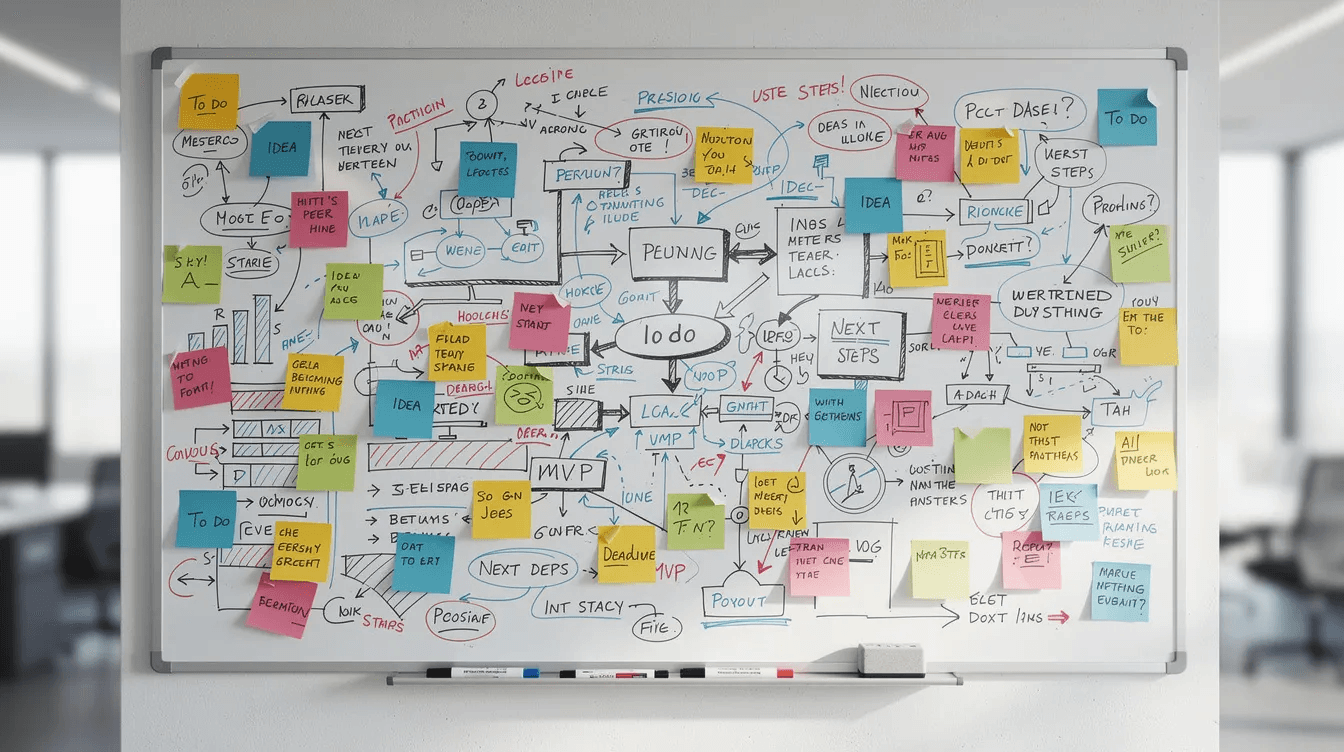
Mind Map renders existing markdown headings and lists as interactive mind maps using the Markmap library. This is especially useful for visualizing long outlines, course structures, or book notes without manually redrawing them.
When to use Mind Map instead of plain markdown:
Your outline has grown to 50+ items across multiple levels. Reading it linearly is overwhelming. Mind Map renders the same content as an expandable, interactive diagram where you can see structure at a glance and drill into branches.
Edits sync bidirectionally—updating markdown changes the map. This encourages keeping content in markdown-first format while enabling visual exploration when needed.
Example: Turn a dense book outline into a mind map to identify gaps, spot redundant sections, or reorganize chapter structure before writing.
Charts
The Charts plugin lets you embed bar charts, line charts, and pie charts directly in notes using simple configuration blocks. No external tools or image exports required.
Common applications:
-
Tracking habits over time
-
Plotting project metrics and progress
-
Visualizing reading goals
-
Displaying survey results from CSV data
Charts remain interactive inside Obsidian. Combined with Dataview queries, you can create dynamic dashboards that update as underlying data changes.
Simple chart example:
type: bar
labels: [Jan, Feb, Mar, Apr]
series:
  - title: Books Read
    data: [4, 3, 5, 6]
This renders a bar chart showing reading progress across four months. Update the data values, and the visualization updates automatically.
Customization & UI Enhancements
Obsidian’s obsidian interface is highly customizable. These plugins fine-tune how your vault looks and feels. While not strictly necessary for functionality, UI tweaks can significantly reduce friction and cognitive load during long work sessions.
Style Settings
Style Settings serves as a centralized control panel for appearance customization: fonts, colors, spacing, line heights, and plugin-specific visual options exposed by many themes.
The plugin is particularly powerful when paired with themes like minimal theme and plugins like Supercharged Links or Pretty Properties. Themes that support minimal theme settings expose dozens of customization options through Style Settings.
Starter routine:
-
Install a community theme you like
-
Open Style Settings from obsidian settings
-
Adjust font size and family for readability
-
Modify line height and paragraph spacing
-
Tweak background contrast for your lighting conditions
Small adjustments—larger fonts, increased line spacing, softer background colors—make dense academic notes significantly easier on the eyes during extended reading sessions.
Pretty Properties
Pretty Properties improves how frontmatter and properties display in your notes: banners, colored fields, custom icons, and friendlier date formats. The plugin focuses on aesthetics and readability rather than adding new data fields.
Especially helpful for:
-
Media tracking (books, shows, courses)
-
Project dashboards where metadata needs to stand out
-
Any note type where scanning metadata quickly matters
Example note layout: A project note displays a banner image at the top, a colored status pill showing “In Progress,” the next review date in a readable format, and relevant tags styled prominently. All this information is scannable in under a second.
Pretty Properties reduces friction when navigating notes with significant frontmatter, making metadata feel like content rather than code.
Iconize or Iconic
Iconize adds custom icons to files and folders, enabling faster visual scanning of the left sidebar and note links. Icons can be rule-based or manually applied.
Rule-based example: All notes in /Projects automatically receive a briefcase icon. All daily notes get a calendar icon. Dashboard notes get a home icon.
Benefits for large vaults:
-
Quickly distinguish note types without reading titles
-
Identify important items (dashboards, MOCs) at a glance
-
Create visual consistency across your vault
Keep icon usage consistent to avoid visual noise. A handful of meaningful icons works better than iconizing everything. The context menu provides quick access to icon assignment when you need it.
Editing Toolbar
Editing Toolbar adds a customizable formatting toolbar for users who prefer visual buttons over markdown syntax or keyboard shortcuts. It’s especially friendly for users migrating from Word, Notion, or Google Docs.
Core features:
-
Buttons for bold, italic, headings, lists, and other formatting
-
Customizable button layout
-
Support for plugin actions beyond formatting
-
Toggle visibility based on editing mode
The toolbar can include custom commands from other plugins, offering quick access to actions you use frequently. Position it above your editor for easy access without memorizing markdown syntax.
For users who find raw markdown intimidating, Editing Toolbar removes a significant barrier to comfortable note taking in Obsidian.
Quality of Life Plugins Worth Trying
These plugins are small, focused tools that remove friction and add enjoyment without overhauling workflows. None are strictly necessary, but many long-time users consider them irreplaceable once installed.
Mononote
Mononote prevents duplicate tabs of the same note from opening. Instead of creating a new tab, Obsidian focuses the existing tab where that note is already open.
-
Keeps tab bars manageable during deep work
-
No configuration required
-
Works automatically in the background
-
Especially valuable when navigating via links, search, or quick switcher
Example: You’re bouncing between a dashboard and multiple project notes throughout the day. Without Mononote, you might accumulate 15 tabs of the same notes opened multiple times. With Mononote, each note appears once, keeping your workspace tidy.
Boring but effective.
Checklist Reset
Checklist Reset instantly unchecks all items in a checklist or specific files, perfect for recurring routines and daily habit lists.
-
Single command to reset all checkboxes
-
Works with Tasks, Daily Notes, or standalone lists
-
Pairs well with weekly review templates
-
Saves time on repetitive tasks
Scenario: Your weekly review template includes 12 checklist items. Every Sunday, reset the checklist with one command instead of manually unchecking each box. Simple plugin, meaningful time savings.
Natural Language Dates
Natural Language Dates converts phrases like “next Friday” or “in 3 days” into properly formatted dates in your notes. This speeds up typing for tasks, deadlines, and journal references.
Example:
-
You type: Review draft @next Wednesday
-
Plugin converts to: Review draft 2026-03-25
Settings allow customization of preferred date formats to match your vault conventions. Combined with the obsidian tasks plugin or Periodic Notes, natural language dates make date entry feel effortless rather than tedious.
Homepage
The homepage plugin defines a default note or workspace that opens automatically when Obsidian launches or when all tabs close. It provides a reliable starting point instead of random or last-used note navigation.
Common homepage layouts:
-
Links to active projects and current goals
-
Today’s daily note (auto-updated)
-
Key Dataview queries showing tasks and recent notes
-
Quick capture buttons via QuickAdd
Starter layout suggestion: Three columns—active tasks on the left, notes in progress in the center, and reference links on the right. One screen shows everything you need to start working.
Soundscapes or Similar Focus Plugin
Soundscapes adds background audio directly inside Obsidian—lofi beats, rain sounds, café ambience, white noise. Having ambient sound available in-app reduces context-switching to external apps or websites.
Features:
-
Multiple built-in soundscapes
-
Status bar playback controls
-
Custom audio file support (in some plugins)
-
Volume mixing for layered sounds
This is purely optional, but many users find that consistent audio environments improve focus during deep work sessions. The convenience of one-click access from within Obsidian makes it easier to establish productive routines.
How to Safely Install, Test, and Remove Obsidian Plugins
Community plugins run third-party code. Obsidian’s plugin security guidance says they can access files on your computer, connect to the internet, and install additional programs, so install only plugins you trust. The official directory now shows a safety scorecard for each project, but a scorecard is one signal—not a substitute for reading the plugin’s documentation or deciding whether it belongs in your vault. For a step-by-step maintenance routine, see how to handle Obsidian plugin updates safely.
To browse community plugins, open Settings → Community plugins, turn off Restricted mode, then select Browse. Before installing anything, check the plugin’s description, latest update date, compatibility notes, GitHub issues, and safety scorecard in the official Community directory. Review the permissions and external services the workflow needs, especially when the vault contains sensitive material.
Start with one plugin. Back up the vault, enable the plugin, and exercise the exact workflow you care about before adding another. This incremental approach makes conflicts diagnosable. For plugins that modify notes, tags, or metadata, keep a rollback path and test on a copy of the vault first.
Do’s and don’ts for new users:
-
Do back up your vault before installing plugins that modify notes (Tag Wrangler, Linter, refactoring tools)
-
Do check the plugin’s GitHub page for known issues and compatibility notes
-
Do disable plugins you’re not actively using to maintain performance
-
Don’t install 20 plugins at once—you won’t be able to identify conflicts
-
Don’t treat update notifications as a reason to update every plugin immediately; review the release notes and update a small group first
-
Don’t skip reading plugin documentation for complex tools like Dataview
Backup methods include Obsidian Sync (subscription), Obsidian Git (free with setup), or standard cloud sync services like Dropbox or iCloud. Avoid running multiple sync systems against the same vault unless you understand their conflict behavior.
A short troubleshooting sequence after an update
- Reopen the vault and check Settings → Community plugins → Current plugins. Confirm the plugin is enabled.
- Open the command palette and search for the plugin’s command. If it is missing, select the refresh icon in Community plugins, then check the plugin’s minimum Obsidian version.
- Disable the most recently updated plugin, then re-enable plugins one at a time. This isolates a conflict without deleting your configuration.
- If the issue is in Obsidian’s settings navigation, update Obsidian before changing plugin files. The 1.13.2 release notes include a fix for pinned commands not showing commands from community plugins.
- If the plugin still breaks the workflow, use Restricted mode to run the vault without community plugins, restore from your backup, and report the reproducible case to the plugin author.
Putting It All Together: Building a Plugin Stack That Fits You
There’s no single “best” set of Obsidian plugins. The optimal stack depends on your role, workflow, and what friction points you’re trying to eliminate. Here are three example configurations:
Minimalist Productivity Stack (4–5 plugins):
-
Calendar + Periodic Notes (time-based organization)
-
Tasks (task management)
-
QuickAdd (rapid capture)
-
Homepage (consistent starting point)
Academic Research Stack (8–10 plugins):
-
Calendar + Periodic Notes (research logging)
-
Dataview (literature databases and project tracking)
-
Templater (standardized note structures)
-
ZotLit or Citations (reference management)
-
PDF++ (reading and annotation)
-
Notes Refactor (atomic note creation)
-
Obsidian Git (version control for thesis work)
Visual Thinker Stack (6–8 plugins):
-
Excalidraw (diagrams and brainstorming)
-
Mind Map (outline visualization)
-
Canvas core plugin (spatial thinking)
-
Dataview (dashboard creation)
-
Style Settings (visual customization)
-
Iconize (navigation clarity)
Start small. Master Calendar, Periodic Notes, Dataview, Tasks, and Templater before exploring advanced tools. These five plugins address the core needs of most obsidian user workflows—once they’re working smoothly, you’ll have a clearer sense of what’s actually missing. Or skip the assembly entirely: Obsibrain gives you a fully configured productivity stack — these core plugins, pre-built dashboards, and templates — out of the box.
Revisit and prune your plugin list every few months. Workflows evolve, and plugins you installed six months ago may no longer serve your current goals. Fewer, well-configured plugins typically outperform a bloated stack of tools you never quite learned.
The Obsidian community continues releasing innovative plugins, so staying curious and experimenting is part of the long-term journey. The best obsidian plugins for you are the ones that disappear into your workflow—tools so integrated you forget they’re there until you try working without them.
Build the stack that fits your work. Test what sounds useful. Remove what doesn’t stick. Your future self, surrounded by well-organized obsidian notes and a responsive vault, will thank you.
Ready to skip the setup? Get Obsibrain and start with a ready-made productivity system — task management, projects, habits, and daily planning — already configured for you.
Obsibrain
Get the complete Obsidian second-brain system
Skip the 20-hour setup spiral. Templates, dashboards, and workflows ready in about 30 minutes — no coding required.
$49 one-time payment. Backed by our 30-day guarantee.