

How to Build an Obsidian Dashboard (Your Vault's Command Center)
Build an Obsidian dashboard or home note: pull today's tasks, active projects and recent notes with Dataview and the Tasks plugin into one command center.
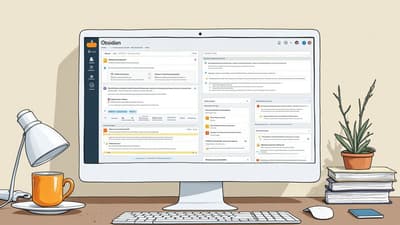
You open Obsidian and land on whatever note you closed yesterday. A half-finished meeting note, maybe, or some random reference page. Your tasks are scattered across a dozen daily notes, three projects are quietly going stale, and the first thing you do every morning is spend two minutes remembering where you even were. That friction is small, but it repeats every single day.
A dashboard fixes it. A dashboard (also called a home note) is one note that surfaces everything that matters — today's tasks, active projects, quick links, recent notes — so you launch into a command center instead of a cold, empty vault. It turns "where do I start?" into "here's what's in front of me," and it does it automatically every time you open the app.
This guide walks you through building one from scratch: setting it to open on startup, choosing the right blocks, pulling live data with Dataview and the Tasks plugin, laying it out so it reads at a glance, and — the part most guides skip — keeping it from rotting over time. We'll also settle a decision most articles dodge: when to reach for Dataview versus the Tasks plugin. Start with three blocks; add more once you trust it.
What Is an Obsidian Dashboard (or Home Note), and Why Does It Anchor a Vault?
A dashboard is a single command-center note that surfaces what matters most so you never open a cold, empty vault again. Instead of hunting through folders, you land on one screen that answers "what should I do, what's in progress, and where do I go next?"
Here's why it beats Obsidian's default behavior of reopening your last note:
- It gives direction. A random last-opened note tells you nothing. A dashboard tells you what's due, what's active, and what changed.
- It reduces decision fatigue. You stop deciding where to look and start deciding what to do. The looking is solved.
- It becomes the daily front door. Open the vault, glance at the board, pick the next action. The dashboard is the hub; everything else is a spoke.
- It compounds with structure. If you already run a system like the PARA method, the dashboard becomes the lens that surfaces your active Projects and Areas at a glance.
Note: A dashboard is not a replacement for your daily note — it's the layer above it. The daily note captures today; the dashboard orients you across your whole vault.
How Do You Set Your Home Note to Open on Startup?
Use the Homepage community plugin to make any note open automatically every time you launch Obsidian. Without it, Obsidian reopens whatever you closed last; with it, you always land on your command center.
Set it up in under a minute:
- Install the plugin. Open
Settings → Community plugins → Browse, search forHomepage, install and enable it. - Create your dashboard note. Name it something obvious like
🏠 HomeorDashboardand put it at the top level of your vault. - Point Homepage at it. In the Homepage settings, set the homepage type to
Fileand pick your dashboard note. - Enable "Open on startup." This is the toggle that makes it fire on every launch.
- Set the view. Choose
Reading viewso queries render as content, not as raw code.
The payoff is the moment of truth: every time you open Obsidian — or every new window — you land on your dashboard, not on yesterday's stray note. That single change is what makes the whole effort stick.
Tip: Homepage can also pin a home icon to the left ribbon, so one click always brings you back to the command center no matter how deep you've wandered.
What Are the Building Blocks of a Great Dashboard?
The core blocks readers expect are quick links, action buttons, today's tasks, active projects, recently modified notes, a habit tracker, and an optional banner or quote. Think of these as a menu, not a checklist — pick the ones you'll actually use.
Here's the inventory and what each one earns its place doing:
- Quick links / navigation (MOCs). A curated list of your most-visited notes or Maps of Content. This is your table of contents.
- Action buttons. One-click shortcuts like "New project," "Open inbox," or "Today's note."
- Today's tasks. An agenda of what's due or overdue, aggregated from across the vault.
- Active projects. A live table of in-progress work, sorted by due date.
- Recently modified notes. The single most universal block — a list of what you've touched lately so you can resume instantly.
- Habit tracker. A glanceable view of streaks or daily checkboxes, if you track habits.
- Banner or quote. Optional flavor — a banner image or a rotating quote to make the board feel like home.
The discipline that separates a useful dashboard from a cluttered one: keep it small and glanceable. A board with three blocks you check daily beats one with nine blocks you ignore. Start minimal, then add.
How Do You Pull Dynamic Sections With Dataview?
Install the Dataview community plugin to turn hand-typed lists into self-updating queries that pull live data from your notes. Static links rot the moment you rename or move a note; Dataview queries re-run every time the page loads, so they're always current.
First, the setup:
- Install
Dataviewfrom Community plugins and enable it. - In its settings, turn on "Enable JavaScript Queries" if you want advanced widgets like vault statistics.
- Add a little metadata to your notes so queries have something to match — YAML frontmatter (
status: active) or inline fields ([due:: 2026-06-12]).
Now the workhorse blocks. The most universal one is recently modified notes:
LIST
FROM ""
SORT file.mtime DESC
LIMIT 5
An active projects table, filtered by tag and sorted by due date:
TABLE status, due
FROM #project
WHERE status != "done"
SORT due ASC
You can also surface notes sitting in your inbox awaiting processing with LIST FROM "0 Inbox", or show a quick vault statistic inline with `$=dv.pages('"Resources"').length` to count notes in a folder. These small live numbers make the board feel alive without adding clutter.
Tip: Always add a
LIMITto list queries. An uncapped "recently modified" query on a 3,000-note vault renders fine, but a dozen uncapped queries on one page will noticeably slow your dashboard's load.
How Do You Build a Today Agenda With the Tasks Plugin?
Use the Tasks plugin for your agenda block because it's purpose-built for due dates, recurrence, and aggregating checkboxes from across every note. Dataview can list tasks, but Tasks understands 📅 due, 🔁 recurring, and ⏳ scheduled natively, which makes it the right tool for a real agenda.
Here's a today-and-overdue agenda you can drop straight onto your dashboard:
not done
(due before tomorrow) OR (happens before tomorrow)
sort by due
group by due
hide backlinks
That block scans every note in your vault, pulls every unchecked - [ ] task with a due date of today or earlier, and groups them so the day's load is obvious at a glance. Check a box here and it updates in the source note — no duplication, no manual syncing.
This is where the Dataview-vs-Tasks decision matters, and most guides never spell it out:
- Reach for Tasks when you care about dates, deadlines, recurrence, or a unified agenda of checkboxes. It's built for exactly this.
- Reach for Dataview for everything else — querying notes by metadata, building project tables, counting files, or listing pages that aren't task-based.
If you want the full mechanics of due dates, recurrence rules, and query syntax, our complete guide to task management in Obsidian goes deep, and the Obsidian GTD setup guide shows how to wire those tasks into a next-actions workflow your dashboard can surface.
How Do You Add Quick Links, Buttons, and Embedded Notes?
Add navigation with a curated link list or MOC, add one-click actions with the Buttons plugin or native callout links, and surface live content by embedding notes directly into the dashboard. Together these turn a static page into an interactive hub.
Three layers to consider:
- Quick links. Hand-pick your 8-12 most-visited destinations — your main MOCs, current projects, key Area notes — as a plain wikilink list. This is the navigation most people use most. For more on connecting notes into Maps of Content, see the guide to Obsidian linking.
- Action buttons. The optional Buttons plugin gives you one-click actions like "Create new project from template" or "Open today's note." Don't want another plugin? A simple callout with wikilinks does 80% of the job.
- Embedded content. Use transclusion to pull live content onto the board.
![[2026-06-05]]embeds today's daily note inline; you can also embed query results so a meetings list or project summary appears without leaving the page.
Embedding your daily note is especially powerful — your dashboard becomes a single screen showing both your vault-wide overview and today's specific plan. The guide to mastering Obsidian daily notes covers how to template that note so the embed always shows something useful.
If wiring all of this by hand sounds like a weekend project, it can be — which is exactly why Obsibrain ships these blocks pre-built and connected so you skip the assembly entirely.
How Do You Lay Out the Dashboard So It's Readable at a Glance?
Lay it out in multiple columns using a CSS snippet with a cssclasses: dashboard property, add a banner with the Banners plugin, and force Reading view so it always renders clean. The goal is a single screen you can scan in three seconds.
The mechanics:
- Multi-column layout. Add
cssclasses: dashboardto your note's frontmatter and use a flexbox snippet (the popular Dashboard++ CSS, or your own) to arrange blocks side by side instead of one long scroll. - Banner image. The Banners plugin adds a header image to the top of the note — purely cosmetic, but it makes the command center feel like a destination.
- Force Reading view. Set the note to open in Reading view (via Homepage, or a force-view-mode snippet) so Dataview and Tasks blocks render as content rather than showing as raw code.
Then apply layout discipline so the board stays glanceable:
- Fit one screen. If you have to scroll, you have too many blocks. Cut or collapse.
- Group by intent. Cluster blocks into Do (tasks), Navigate (links), and Review (recent notes, stats).
- Most-used top-left. Your eyes land top-left first — put the block you check most there.
Note: If a Dataview or Tasks block shows up as a code block instead of a rendered list, you're almost always in Live Preview or Source mode. Switch to Reading view and it renders.
How Do You Keep a Dashboard From Rotting Over Time?
Treat your dashboard like a living note that needs occasional pruning, not a one-time build you set and forget. The reason most dashboards fall out of use isn't a bad build — it's neglect: dead links pile up, abandoned queries clutter the view, and the board slowly stops reflecting reality.
A few habits keep it trustworthy:
- Prune dead quick links. During your weekly review, delete links to finished projects and notes you no longer open. A stale link is worse than no link.
- Watch for query bloat. Every live query has a small load cost. If your vault grows large and startup slows, remove queries you don't read, tighten filters, and add
LIMITto any uncapped lists. - Tune, don't expand by default. Before adding a new block, ask whether you actually check the ones you have. Replace unused blocks instead of stacking new ones on top.
- Re-anchor to your system. If your projects or Areas change, make sure the dashboard's
#projectfilter and folder paths still point at the right places.
This ties into the weekly-review habit that keeps any Obsidian productivity template healthy. A dashboard you trust is one you keep using; a dashboard you've stopped trusting is just decoration.
Tip: Build in tiers. Version 1 is three blocks — recent notes, today's tasks, quick links. Live with it for a week. Only add a projects table, habit tracker, or banner once you've confirmed you actually open the board every day.
How Does Obsibrain Ship a Ready-Made Dashboard as Your Command Center?
Obsibrain ships a prebuilt home dashboard with quick links, today's tasks, active projects, a habit tracker, and periodic-planning shortcuts already wired into its PARA and GTD structure — no Dataview queries to write, no CSS to install, no plugin assembly. You open the vault and the command center is already working.
What you get out of the box:
- A configured home note that opens on startup and surfaces today's agenda, active projects, and recent activity automatically.
- Quick links and action shortcuts mapped to the preconfigured PARA folders and capture flows.
- A habit tracker and periodic-planning hub that connects your dashboard to daily, weekly, monthly, and yearly notes.
- Tasks and projects already linked to the GTD plus Eisenhower workflow, so the agenda reflects real priorities, not just due dates.
The payoff is time and trust: instead of spending a weekend wiring queries, layouts, and plugins — and then maintaining them — you start from a command center that's been built and tuned for you, and it pairs with the full daily and weekly planning system from day one.
Frequently Asked Questions
Do I need plugins to make an Obsidian dashboard? No — a basic dashboard can be a plain note with hand-typed wikilinks, and that alone beats opening a random note. Plugins make it dynamic: Dataview pulls live lists and tables, Tasks builds a real agenda, and Homepage opens the note automatically. Start plugin-free if you want, then add them as you outgrow the static version.
How do I make Obsidian open to my home note automatically?
Install the Homepage plugin, set the homepage type to File, choose your dashboard note, and enable "Open on startup." From then on, every launch lands you on your command center instead of your last-opened note.
What's the difference between using Dataview and the Tasks plugin on a dashboard? Dataview queries any note or metadata into custom tables and lists — projects, recent notes, vault stats, anything. The Tasks plugin is purpose-built for checkboxes with due dates, recurrence, and scheduling. Use Tasks for your agenda and anything date-driven; use Dataview for everything else.
Why isn't my Dataview query showing on the dashboard? Usually one of four things: the plugin isn't enabled, you're viewing the note in Source or Live Preview instead of Reading view, JavaScript queries are off (needed for advanced widgets), or no notes have the metadata your query is filtering on. Check those in order and the block will render.
Conclusion
A dashboard turns Obsidian from a pile of notes into a command center. Set it to open on startup, surface the handful of blocks you actually check — today's tasks, active projects, recent notes, quick links — and prune it during your weekly review so it stays trustworthy. The payoff is a vault that orients you the moment you open it, every day, with zero hunting.
Your one concrete first action: install the Homepage plugin, create a note called Dashboard, and set it to open on startup. Even empty, it's now your front door — and you can add your first three blocks tomorrow. When you'd rather skip the build, Obsibrain ships the whole command center ready to go.
Obsibrain
Get the complete Obsidian second-brain system
Skip the 20-hour setup spiral. Templates, dashboards, and workflows ready in about 30 minutes — no coding required.
$49 one-time payment. Backed by our 30-day guarantee.