

Obsibrain Docs
🔁 How can I sync my vault?
Since your Obsibrain vault is essentially a folder of Markdown files, you have total control over how you sync it. However, because Obsibrain uses complex plugins and internal scripts, we recommend using a sync solution that handles hidden files and configuration settings reliably.
Recommended Sync Solutions
- Obsidian Sync (Highly Recommended): This is the official service provided by the Obsidian team. It is the most robust and "plug-and-play" option, specifically designed to handle the complex metadata and plugin configurations that power Obsibrain.
- Apple iCloud (Recommended for Apple Users): A great free option if you are exclusively in the Apple ecosystem (Mac, iPhone, iPad).
- GitHub Sync: An excellent, free option for technical users who want version control history for every change in their vault.
Critical: Syncing Plugin Settings
If you choose Obsidian Sync, it is vital that you enable all sync options. Obsibrain's "magic" comes from its plugin settings and hidden configuration files. If these aren't synced, your dashboards and commands may not work correctly on secondary devices.
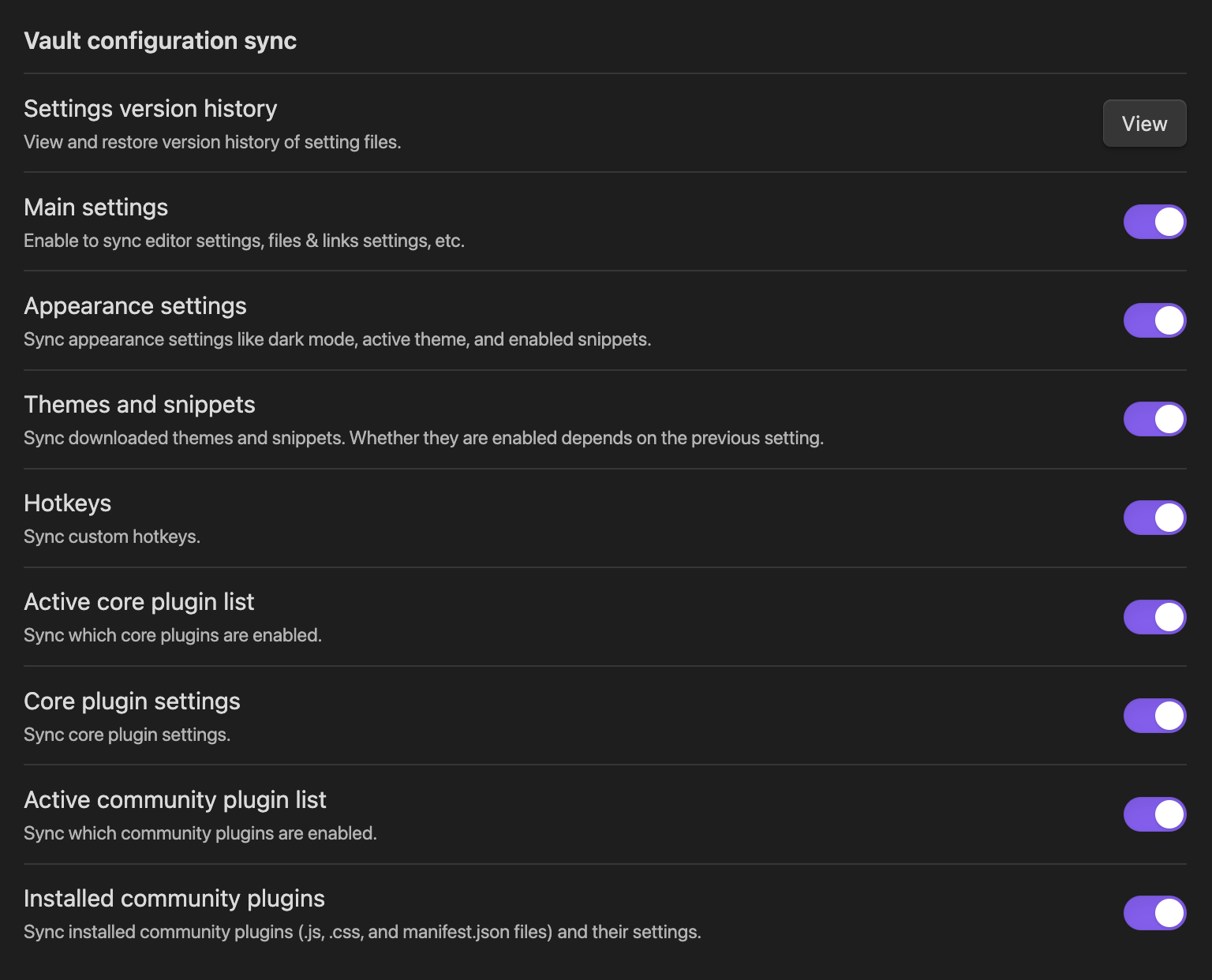
Ensure all "Vault configuration sync" options are toggled ON.
Known Obsidian Sync Plugin Issues (And Fixes)
Obsidian Sync can be finicky with plugins. The issues below are common and well-documented in the community.
Settings don't appear after sync
Plugin settings files (data.json) are not live-reloaded while Obsidian is running. Even if Sync downloads all files, the settings won't apply until you fully restart Obsidian. Many users mistake this for a sync failure and then overwrite the synced data with local changes.
Plugins installed but not enabled
On a new device, Obsidian Sync may install community plugins but leave them disabled. In some cases, .obsidian/community-plugins.json gets recreated as an empty list. This is most likely when the option to sync community plugins was not enabled before the initial sync began.
Mobile-specific failure (Android/iPhone)
If plugin syncing isn't enabled during the first vault setup, Obsidian can try to load plugins before their files have finished syncing, which causes a persistent "failed to load plugin" error. The reliable fix is to uninstall and re-activate the affected plugins.
Settings sync conflicts For plugin settings stored as JSON, Obsidian Sync merges files by applying local keys on top of remote keys. This can produce unexpected configurations.
How to Prevent or Fix Plugin Sync Issues
- Enable plugin syncing before the first sync — go to Sync settings and toggle on Installed community plugin list and Active community plugin list.
- Always fully restart Obsidian (force-quit on mobile) after a sync completes before checking plugin states.
- Don’t edit plugin settings immediately after syncing — wait for a full restart first, otherwise local changes overwrite synced data.
- If plugins are stuck disabled, remove numbered duplicate config files (e.g.,
community-plugins.json.1) from.obsidian, then restart. - Linux/Wayland users on Obsidian 1.10.6 may see a bug where the Sync settings panel never appears in the sidebar.
A Note on Other Services (Dropbox, Google Drive, OneDrive)
While these services can work, they sometimes struggle with Obsidian's rapid file-saving nature or conflict with hidden configuration files. If you use them, ensure your vault folder is set to "Available Offline" to prevent indexing delays.
Obsibrain
The complete system — ready in ~30 min
$49 one-time payment. Backed by our 30-day guarantee.