

GTD Workflow: A Practical Guide to Getting Things Done
The GTD workflow offers a structured escape from mental chaos. This guide walks you through the complete system so you can capture information effectively, clarify what matters, and engage with your work confidently.
If you’ve ever felt overwhelmed by the sheer volume of tasks, ideas, and commitments swirling around in your head, you’re not alone. The GTD workflow offers a structured escape from that mental chaos. This guide walks you through the complete system so you can capture information effectively, clarify what matters, and engage with your work confidently.
What is the GTD Workflow?
The GTD workflow is a five-step productivity method created by David Allen, first introduced in his book “Getting Things Done: The Art of Stress-Free Productivity” published in 2001. More than two decades later, this approach remains one of the most well known productivity systems in the world, helping millions of people organize their tasks and maintain focus on what actually matters.
At its core, the GTD method is about moving everything out of your head and into an external trusted system. Instead of relying on memory to track commitments, you capture everything externally and process it systematically. The result is a clear mind and the confidence that nothing important will slip through the cracks.
Here’s a quick overview of the five steps:
-
Capture: Collect everything that has your attention into an inbox
-
Clarify: Decide what each item means and what action it requires
-
Organize: Put items into appropriate lists and your calendar
-
Reflect: Review your system regularly to keep it current
-
Engage: Choose what to work on based on context and priority
Overview of the 5-Step GTD Workflow
Think of the GTD methodology as a pipeline that transforms random inputs from your life into concrete, completed outcomes. Every task, idea, or commitment enters through the same front door and flows through each step until it’s either done, stored for later, or discarded.
Here’s how items move through the process:
-
Capture: An idea or task enters your inbox (physical or digital)
-
Clarify: You decide if it’s actionable and define the next step
-
Organize: You file it into the right list, calendar, or reference folder
-
Reflect: You review your lists to stay current and confident
-
Engage: You select tasks based on your context, time, and energy
For example, imagine you need to plan a birthday party for a friend. You’d capture the idea (“throw surprise party for Sam”), clarify what the very next action is (“call venue to check April 15th availability”), organize that action onto your @Calls list, reflect on it during your weekly review to ensure progress, and engage by making the call when you have five free minutes.

Step 1: Capture – Get Everything Out of Your Head
The capture step addresses what David Allen calls open loops—those unfinished tasks and ideas that nag at your subconscious. Research suggests that incomplete tasks occupy working memory and contribute to stress. By getting everything out of your head and into a trusted inbox, you free up mental resources for actual work.
What should you capture? Everything that has your attention:
-
Tasks and commitments: “renew passport before May 2026”, “schedule dentist appointment”
-
Work deliverables: “draft Q2 marketing report”, “send client proposal”
-
Ideas and possibilities: “research new CRM tools”, “podcast topic about remote work”
-
Reference material to file: receipts, articles, contact information
-
Personal reminders: “buy anniversary gift”, “call mom on Sunday”
Common capture tools include:
-
A physical inbox tray on your desk
-
A small paper notebook you carry everywhere
-
A notes app on your phone
-
Your email inbox
-
A dedicated task manager inbox
The key principle is simple: write it down immediately. Don’t rely on memory. If a thought crosses your mind, capture it before it disappears.
Mind Sweep: The Initial GTD Reset
When you first implement GTD, start with a mind sweep—a focused 20-30 minute exercise to dump everything from your brain onto paper or into your inbox.
Sit down with your capture tool and write everything that has your attention. Don’t filter or organize yet. Just write. Use prompts to jog your memory:
-
Home: repairs, cleaning, purchases, maintenance
-
Work: projects, meetings, deadlines, emails to send
-
Finances: bills, taxes, investments, insurance
-
Health: appointments, medications, fitness goals
-
Family: events, gifts, conversations to have
-
Learning: courses, books, skills to develop
The output is a long, unfiltered list in your inbox. This isn’t organized yet—that comes later. After your initial sweep, plan to repeat a shorter version weekly or whenever you feel overloaded.
Daily Capture Habits
Integrating capture into daily life ensures nothing slips through:
-
Jot down action items immediately after each meeting
-
Use your phone to capture ideas during commutes
-
Process interesting articles or notes into your inbox while browsing
-
Do a quick brain dump at the end of each workday
Always carry at least one capture tool. Whether it’s a small notebook or an app, having something available means you’ll never forget a commitment because you couldn’t write it down.
Step 2: Clarify – Decide What Each Item Means
Clarifying transforms a messy inbox into actionable items. For each captured item, ask two questions: “What is this?” and “Is it actionable?”
The decision tree is straightforward:
-
Trash: Delete or discard if it’s no longer relevant
-
Reference: File it if it’s useful information but requires no action
-
Someday/Maybe: Park it if you might want to act on it later but not now
-
Actionable: Define the next action if it requires you to do something
An actionable item has a clear, physical next step you can actually perform. Avoid vague labels like “sales” or “project planning.” Instead, write specific actions: “email Alex the Q1 sales numbers” or “call vendor to confirm pricing.”
The Two-Minute Rule
If a task takes less than two minutes, do it immediately during clarification. Don’t add it to a list—just complete it.
Examples of two-minute tasks:
-
Forward an invoice to finance
-
Confirm a 10:00 meeting via quick reply
-
File a receipt into your reference folder
-
Send a brief thank-you email
This rule prevents tiny tasks from clogging your system. If every small action sits on a list, the list becomes overwhelming. Handle quick wins on the spot and move on.
For tasks taking longer than two minutes, create a clear next action and move it to the appropriate list.
Turning Items into Next Actions and Projects
A project in GTD is any desired outcome that requires more than one action. Examples include:
-
“Plan April 2026 conference trip”
-
“Launch new landing page”
-
“Complete 2025 tax return”
For each project, identify the very next physical action. For “plan April 2026 conference trip,” that might be “research April flights to Berlin.” For “complete 2025 tax return,” it could be “gather receipts for 2025 tax return.”
Keep your project names outcome-based (what done looks like) and your actions behavior-based (what you’ll physically do):
-
Project: “Completed tax return for 2025”
-
Next action: “gather receipts for 2025 tax return”
This concrete language makes it easy to engage when the moment comes.
Step 3: Organize – Put Things Where They Belong
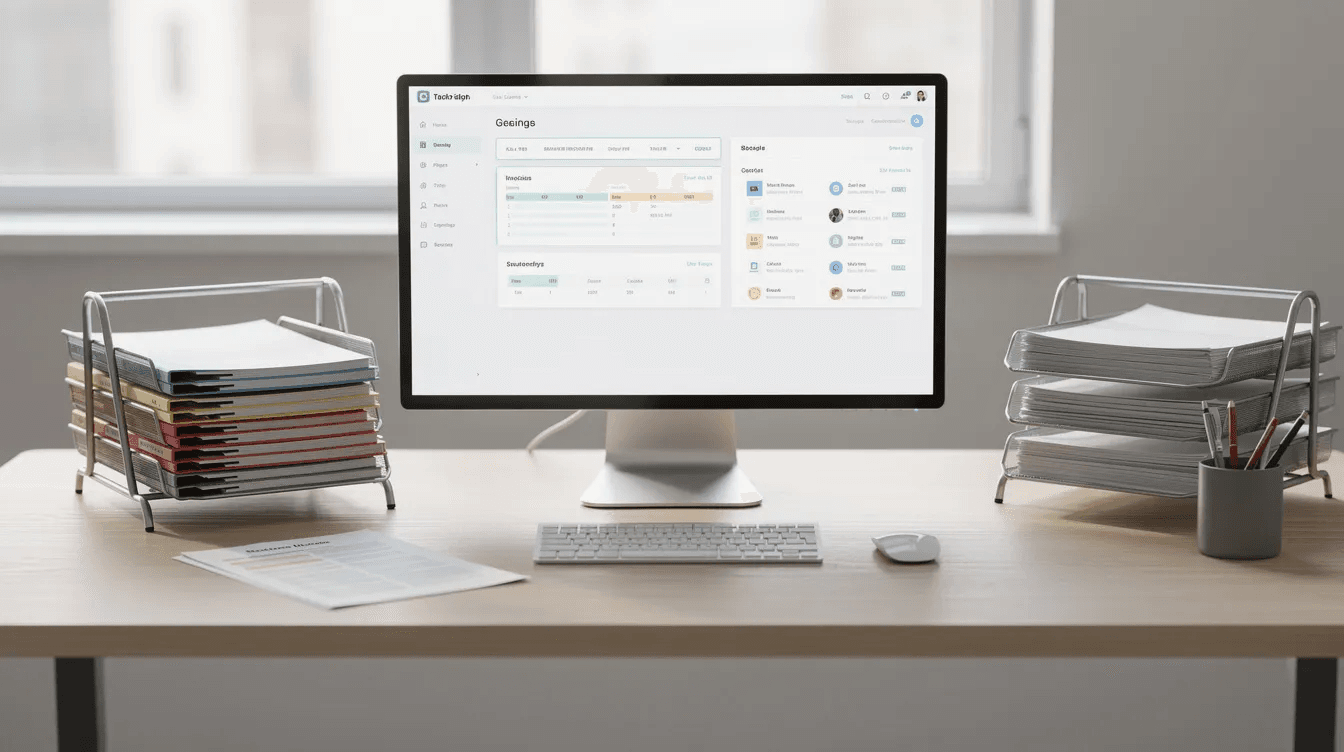
Organizing places clarified items into consistent, labeled buckets that form your trusted GTD system. When everything has a home, you can review your commitments quickly and decide what to do next without confusion.
The core GTD buckets are:
-
Calendar: Time-specific and day-specific commitments only
-
Next Actions: Tasks organized by context
-
Project List: All active multi-step outcomes you’re working toward
-
Waiting For: Items delegated to others
-
Someday/Maybe: Ideas and possibilities for the future
-
Reference: Non-actionable information stored for retrieval
This structure becomes the backbone of your system. Let’s look at each component.
Calendar and Time-Specific Actions
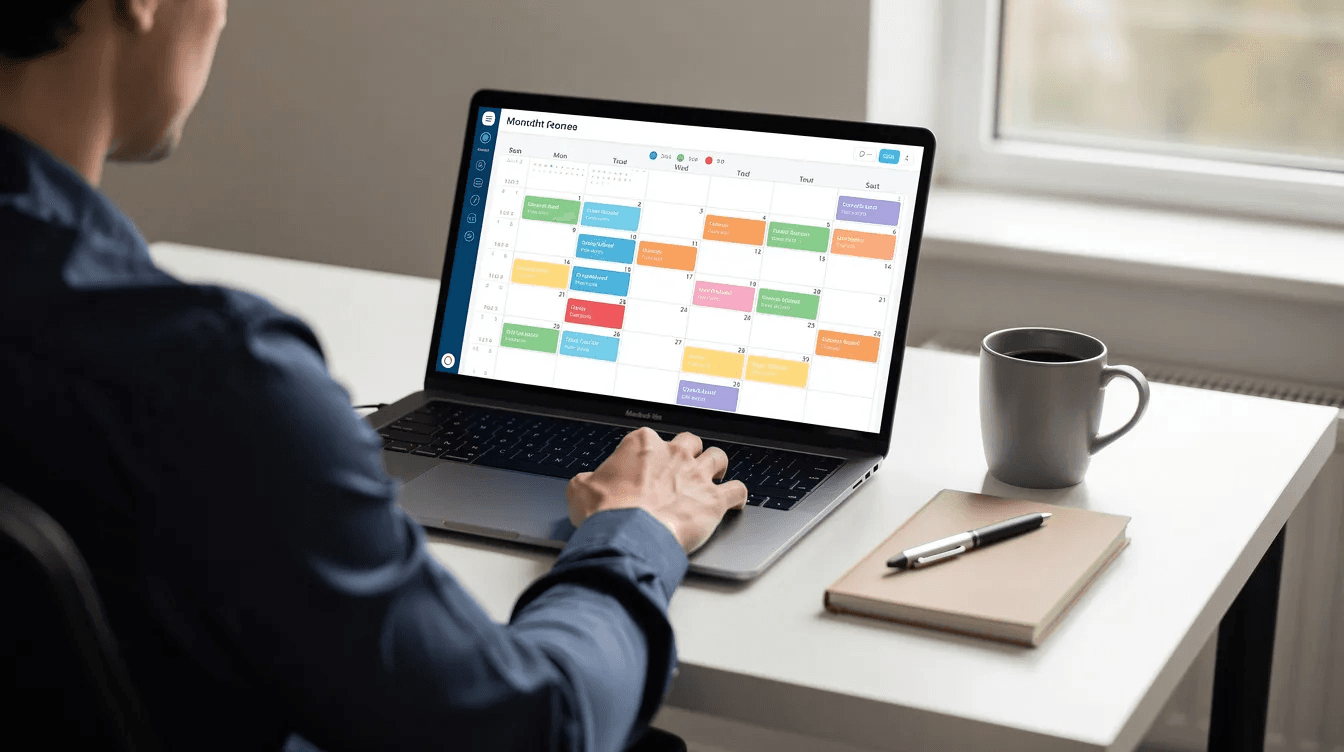
Your calendar is sacred. Only time-specific or day-specific commitments belong there:
-
“Doctor appointment 9:00 on 2026-04-14”
-
“Project deadline: Submit proposal by April 20”
-
“Flight departure 2:30 PM on May 5”
Avoid overloading your calendar with “hope to do” items. If something doesn’t absolutely need to happen at a specific time, it belongs on your next actions list instead.
Keep your calendar for “must do on this day/time” commitments. Everything else goes on lists.
Check your calendar morning, midday, and late afternoon to stay aware of upcoming events and deadlines.
Next Actions by Context
Contexts group next actions by the tools, location, or energy required to complete them. Common contexts include:
-
@Computer: Tasks requiring your computer
-
@Home: Things to do at home
-
@Errands: Tasks to handle while out
-
@Calls: Phone calls to make
-
@LowEnergy: Simple tasks for when you’re tired
Organizing by context simplifies decisions. When you’re commuting, pull up your @Calls list and knock out a few. When you’re running errands, check @Errands to see what else you can handle nearby.
This approach removes the friction of scanning through unrelated tasks and helps you focus on what you can actually accomplish in your current situation.
Projects and Areas of Focus
Your project list tracks all active outcomes you’re committed to completing. These might include:
-
“Redesign team onboarding by June 2026”
-
“Plan summer vacation”
-
“Launch Q2 marketing campaign”
Many people maintain 30-100 active projects at any given time. That sounds like a lot, but remember: a “project” is simply any outcome requiring multiple actions.
Areas of focus (Work, Personal, Health, Finances) can help you group related projects and ensure you’re maintaining balance across your life. Each active project should have at least one current next action tracked somewhere in your system.
Waiting For and Delegated Items
The Waiting For list tracks actions someone else needs to complete before you can proceed:
-
“Waiting for designer to send logo files”
-
“Waiting for landlord to confirm lease extension”
-
“Waiting for client to approve budget”
For each item, note the person responsible and the date you delegated or expect a response. This lets you follow up systematically rather than hoping you’ll remember. Set reminders if needed to check back on blocked items.
Someday/Maybe and Reference
Someday/Maybe captures ideas you might pursue later but aren’t committing to now:
-
“Learn Italian”
-
“Visit Kyoto in autumn”
-
“Start a podcast”
Placing ideas here keeps them from cluttering active lists while ensuring you don’t forget them. Review this list during your weekly review to see if anything is ready to become an active project.
Reference material includes non-actionable items you want to keep: manuals, receipts, meeting notes, articles, and documents. Create a simple, searchable file structure so you can find what you need without hunting.
Step 4: Reflect – Keep Your System Current
A GTD system only works if you trust it. Reflection is the habit that maintains that trust. Without regular review, even the best-organized system becomes stale and unreliable, leaving you wondering if you’ve forgotten something important.
There are two main reflection rhythms:
-
Daily check-ins: Quick scans to stay oriented
-
Weekly review: A thorough reset of your entire system
Daily Check-Ins
Spend 5-10 minutes at the start and end of each workday reviewing your system:
Morning check-in:
-
Scan today’s calendar for appointments and deadlines
-
Review your next actions by context
-
Identify 3-5 key tasks to focus on today
End-of-day tidy-up:
-
Capture any loose tasks still in your head
-
Clear your inbox if items accumulated
-
Adjust dates or priorities as needed for tomorrow
These brief sessions keep you oriented and prevent the overwhelm of facing a cluttered system each morning.
The Weekly Review
The weekly review is a 45-90 minute session—typically Friday afternoon or Sunday evening—that resets your entire system. David Allen describes this as the habit that separates successful GTD practitioners from those who abandon the method.
Follow this sequence:
-
Get clear: Empty all inboxes to zero
-
Get current: Review your calendar (past and upcoming weeks) and scan all lists
-
Get creative: Review Someday/Maybe for ideas ready to activate
During the review, scan each project to confirm it has at least one clear next action. If a project has stalled, decide whether to reactivate it or move it to Someday/Maybe.
The weekly review is critical for long-term GTD success. It’s how you regain control after busy periods and maintain confidence in your system.
Step 5: Engage – Choosing What to Do Now
Engaging is where the workflow pays off. With a complete, trusted system, you can decide what to work on with less stress and indecision. You’re no longer wondering what you might have forgotten—you’re choosing from clear options.
GTD doesn’t force rigid schedules. Instead, it supports informed, flexible choices throughout the day based on:
-
Context: Where you are and what tools you have
-
Time available: How long until your next commitment
-
Energy level: Your current mental and physical state
-
Priority: What matters most right now
Using Context, Time, and Energy
Start by filtering your next actions by context. If you’re at your computer, look at @Computer. If you’re waiting for a meeting to start, check @Calls for a quick five-minute task.
Next, consider time. With a two-hour block, tackle deep work. With only 10 minutes, pick something quick from @Errands or @LowEnergy.
Finally, factor in energy:
-
Save low-energy tasks (filing, simple emails) for late afternoon
-
Reserve high-focus work for your peak hours
-
Match the task to your current state rather than fighting against it
Balancing Priorities
GTD surfaces options; you still consciously decide which outcomes matter most. A helpful daily habit is identifying 1-3 high-impact tasks aligned with your current goals or deadlines.
Throughout the day, periodically check your project list and calendar to ensure you’re moving key work forward. It’s easy to stay busy with small tasks while ignoring what truly matters. Regular priority checks keep you aligned with bigger commitments.
Putting the GTD Workflow into Practice
Here’s what a typical day might look like using the complete GTD workflow:
Morning commute: You remember you need to follow up with a vendor. You capture “call vendor about invoice” in your phone app.
At work: During inbox processing, you clarify this item. It’s actionable, will take more than two minutes, and the next action is “call vendor to confirm payment terms.” You organize it onto your @Calls list.
Midday: Between meetings, you check @Calls, see the vendor task, and make the call. Done.
End of day: During your 5-minute review, you notice a new project brewing from today’s meeting. You capture it, clarify the next action, and organize it for tomorrow.
Friday afternoon: Your weekly review ensures every project has a next action, your Waiting For list is current, and nothing has slipped through the cracks.

Getting Started
You don’t need to implement everything at once. Here’s a simple plan:
-
Do an initial mind sweep: Spend 20-30 minutes getting everything out of your head
-
Set up basic lists: Create a project list, a few context-based actions lists, and a Waiting For list
-
Schedule your first weekly review: Put 60 minutes on your calendar for the end of the week
-
Start small: Refine your contexts and lists over the next few weeks as you learn what works
GTD is flexible. You might start with just two contexts (@Computer and @Errands) and add more as needed. The goal isn’t perfection on day one—it’s building a system you trust over time.
The payoff is a clearer mind, fewer dropped balls, and confident decisions about what to do next. When your brain isn’t constantly reminding you of open loops, you can focus on the work in front of you. That’s the promise of stress free productivity—and it’s within reach once you implement the GTD workflow consistently.
Obsibrain
Get the complete Obsidian second-brain system
Skip the 20-hour setup spiral. Templates, dashboards, and workflows ready in about 30 minutes — no coding required.
$49 one-time payment. Backed by our 30-day guarantee.